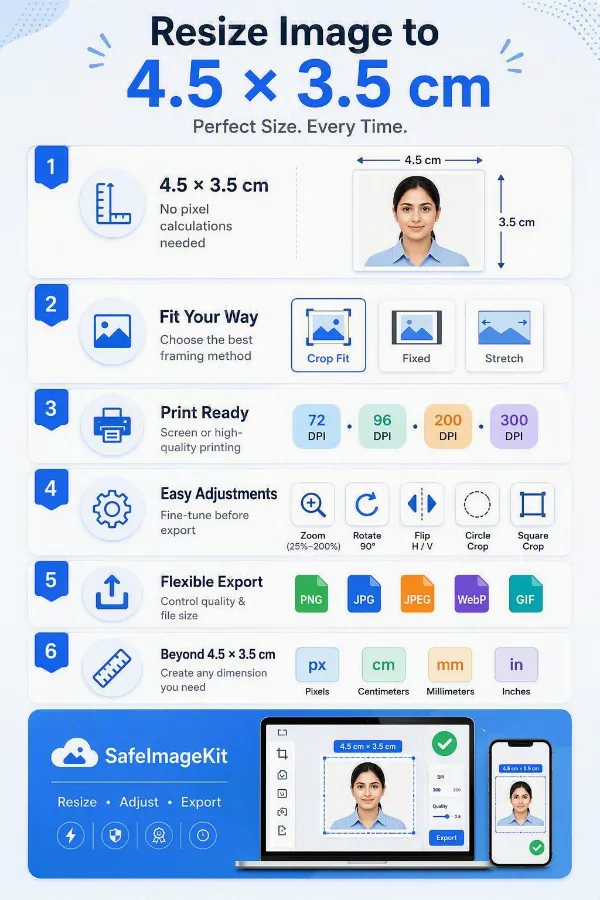
Set your image to 4.5 cm wide × 3.5 cm high without manually calculating or entering pixel dimensions. The tool automatically applies the selected physical dimensions to the image, making it convenient when a requirement is given specifically in centimeters.
Choose the Right Resize Method
Because 4.5×3.5 cm is a landscape-oriented size, the way your original photograph is fitted can make a noticeable difference. Use Crop Fit to fill the frame while maintaining proportions. Fixed to keep the complete image with padding, or Stretchy to fill the entire frame, is more important than preserving the original proportions.
Match the Required Print Density
Select a DPI setting of 72, 96, 200, or 300 based on your intended use. For screen viewing, lower DPI values are typically sufficient. For printing a 4.5 × 3.5 cm photo, 200 or 300 DPI may be preferable when higher print detail and density are needed.
Control the Photo Before Exporting
Use the 25%–200% zoom controls to adjust how much of the image is visible. You can also rotate the image 90° left or right and flip it horizontally or vertically to achieve the desired orientation. If you need a different final look, choose either a square or circle crop shape instead of the standard rectangular format.
Set the Output Quality and Format
Adjust the image quality on a scale from 0.1 to 1.0 to achieve the right balance between visual clarity and file size. When your image is complete, export it in PNG, JPG, JPEG, WebP, or GIF format. Select the format that best suits the type of image you're creating to ensure optimal quality and performance.
Custom Dimensions and Units
The tool is not limited to 4.5 × 3.5 cm photos. You can enter custom dimensions and work in pixels, centimeters, millimeters, or inches, making it suitable for a wide range of photo, print, document, and digital image size requirements.
Steps to Resize Image to 4.5 x 3.5 cm
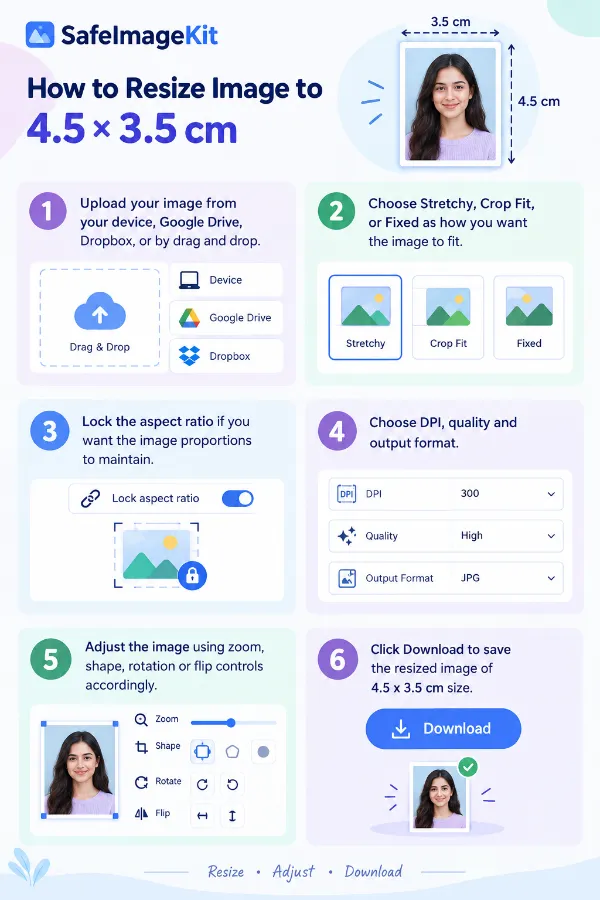
1 . Upload your image from your device, drag and drop,, or use cloud storage.
2 . Choose stretchy, crop-fit, or fixed resize types accordingly.
3 . Lock the aspect ratio if you want the image proportions to maintain.
4 . Choose DPI, quality, and output format.
5 . Adjust the image using zoom, shape, rotation, or flip controls accordingly.
6 . Click Download to save the resized image of 4.5 x 3.5 cm size.
Other useful information
Explore our visual guides and infographics
The infographic explains how to set an image to 4.5 × 3.5 cm and save the resized result.
The infographic highlights the key options for creating images at a 4.5 × 3.5 cm size.
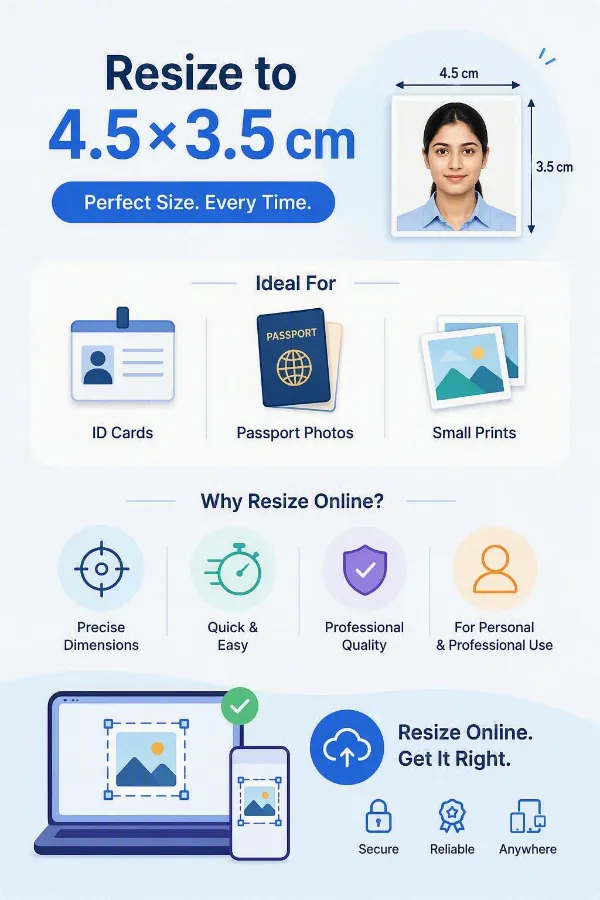
The infographic shows common situations where a 4.5 × 3.5 cm image size is useful.
×
Frequently Asked Questions
What is the 4.5×3.5 cm photo size?
A 4.5×3.5 cm photo measures 4.5 centimeters across its width and 3.5 centimeters in height. Since the width is greater than the height, it is a landscape-oriented photo size.
Is 4.5×3.5 cm the same as 3.5×4.5 cm?
Yes, the dimensions contain the same numbers, but the orientation differs. A 4.5×3.5 cm photo is landscape, while a 3.5×4.5 cm photo is portrait.
What is the aspect ratio of a 4.5×3.5 cm photo?
The aspect ratio is 4.5:3.5, which simplifies to 9:7. This means the photo is wider than it is tall, but it is not the same shape as common 4:3 or 16:9 images.
Why does my photo look different when fitted into 4.5×3.5 cm?
Your original image may have a different aspect ratio from the required 4.5×3.5 cm frame. Crop Fit may remove some edges, Fixed may leave padding around the image, while Stretchy changes the proportions to fill the frame completely.
Which resize mode should I use for a 4.5×3.5 cm photo?
Use Crop Fit when you want the entire frame filled without distorting the image. Choose Fixed when keeping the complete original photograph is more important, and use Stretchy when you need every part of the 4.5×3.5 cm frame filled regardless of the original proportions.
Is this tool only for 4.5×3.5 cm photos?
No. While this page focuses on 4.5×3.5 cm images, you can enter custom dimensions and work in pixels, centimeters, millimeters, or inches. The same tool can be used for many other photo, print, and digital image size requirements.
Is my photo uploaded to a server?
No. The resizing process is performed locally in your browser, allowing you to adjust dimensions, DPI, and other settings without sending the image to a remote processing server.
Can I make a 4.5×3.5 cm photo from a portrait image?
Yes. A portrait image can be converted to the wider 4.5×3.5 cm format. If you want the whole portrait preserved, Fixed mode can add padding; if you want the photo to fill the frame, Crop Fit can remove portions that fall outside the required composition.
What happens if I use Stretchy on a portrait photo?
Stretchy forces the image into the 4.5×3.5 cm dimensions by adjusting its width and height independently. If the original image is much taller than the target shape, people or objects may appear wider or shorter than they did in the original.
What DPI is suitable for a printed 4.5×3.5 cm photo?
For print-oriented work, 200 or 300 DPI can be suitable when the receiving requirement calls for that level of density.
What DPI should I use for a 4.5×3.5 cm photo used online?
For screen-based use, 72 or 96 DPI may be sufficient in situations where the destination does not specify another value.
How many pixels is 4.5×3.5 cm at 300 DPI?
At 200 DPI, 4.5×3.5 cm is approximately 354×276 pixels. The exact pixel count is obtained by converting each centimeter measurement to inches and then multiplying by the selected DPI.
Why do the pixel dimensions change when I change DPI?
The physical dimensions remain 4.5×3.5 cm, but DPI determines how many pixels are used to represent each inch. Therefore, a higher DPI produces more pixels for the same physical photo size, while a lower DPI produces fewer.
Can I use 4.5×3.5 cm without knowing the required pixel size?
Yes. If your requirement is provided specifically in centimeters, you can work directly with 4.5 cm × 3.5 cm in the tool. There is no need to manually calculate the pixel dimensions first; the selected DPI determines the corresponding pixel representation.
Should I lock the aspect ratio for a 4.5×3.5 cm photo?
Lock Aspect Ratio is useful when you want the source image to remain proportional while making adjustments. If the source does not naturally match the 4.5:3.5 ratio, use Crop Fit, Fixed, or Stretchy to decide how that difference should be handled.
Can I use a white background for a 4.5×3.5 cm photo?
Yes. With Fixed mode, you can fill the unused area around the photograph with a selected background color. You can also enter a hex color code when you need a specific background shade.
What quality should I choose for a 4.5×3.5 cm photo?
The tool allows quality adjustments from 0.1 to 1. A higher setting can be useful when retaining image detail is important, while a lower setting can help when the destination has a file-size restriction; the best setting also depends on the selected output format.
Can I change the dimensions to another size after selecting 4.5×3.5 cm?
Yes. You can replace the preset dimensions with your own width and height. The tool also supports pixels, centimeters, millimeters, and inches, so you can switch to another measurement system when your next requirement uses a different unit.
Can I use the 4.5×3.5 cm resizer for an existing photograph without editing it elsewhere?
Yes. The tool includes several adjustments that can be made before downloading, including zoom, rotation, flipping, shape selection, resizing method, DPI, and quality. This lets you prepare the photograph and its output settings within the same workflow.
What is 4.5×3.5 cm in inches?
A 4.5×3.5 cm photo is approximately 1.77×1.38 inches. This conversion can be useful when a printer or application requires dimensions in inches instead of centimeters.
Can I resize photos without losing quality?
Resizing can affect image quality, especially when enlarging very small images. Using a suitable output quality setting and starting with a higher-resolution source image generally helps preserve visual detail.
Which output format should I choose?
The best format depends on how the image will be used. JPG or JPEG is commonly used for photographs, PNG is useful when sharp edges or transparency are needed, WebP often provides smaller file sizes, and GIF can be used for simple graphics.
Can I resize photos from a mobile phone?
Yes. The tool can be used on mobile devices, allowing you to upload a photo, adjust the dimensions and settings, and download the resized image directly from your phone or tablet.
What is the difference between dimensions and DPI?
Dimensions define the physical size of the photo, such as 4.5×3.5 cm, while DPI determines how densely pixels are printed within that size. Both settings work together to determine the final output.
How can I reduce an image to 1024 KB without unnecessarily lowering its visual quality?
When an upload system limits files to 1024 KB, simply resizing the dimensions may not be enough because file size also depends on the image format, compression level, and image content. A practical approach is to reduce unnecessary dimensions first and then adjust the image quality or output format until the file meets the required size while remaining visually usable.
How can I reduce a GIF so that it fits within a 5 MB upload limit?
If a platform restricts animated GIF uploads to 5 MB, reducing the file dimensions, number of frames, or compression level can help bring the file under the limit. The best approach depends on what you need to preserve: visual dimensions, animation length, or image quality. Checking the resulting file size after compression helps confirm that it meets the upload requirement.
Can I resize multiple images to the 4.5x3.5 cm simultaneously using this tool?
No, our tool is designed primarily for single-image resizing to 4.5x3.5 cm. However, if you want to resize multiple images to 4.5x3.5 cm simultaneously, use our Multi-Image Resizer tool.
Over 500k Users Rely on Our Image Editing Tools Monthly
Join a growing community of creators who trust safeimagekit.com for versatile image editing and processing solutions.
We appreciate your feedback and will use it to improve our services.
About The Author
RK Shree - A science enthusiast with a poetic flair, and possesses an insatiable desire to explore diverse fields seeking new knowledge and experiences. My work ethic is highly disciplined and dedicated. I take pleasure in pursuing creative endeavors that captivate me.