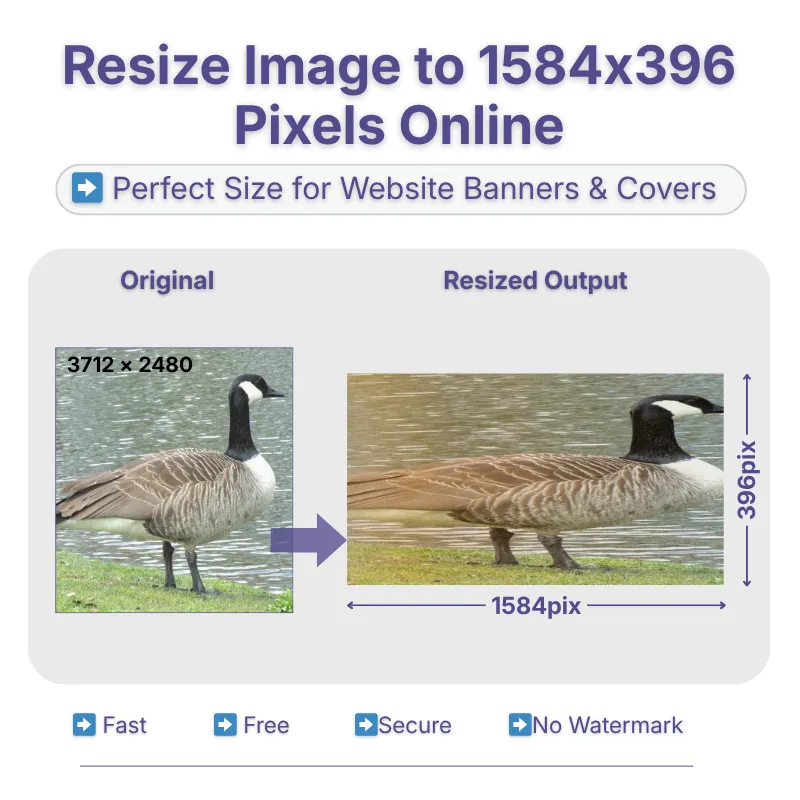
Resize an image at exactly 1584 pixels width and 396 pixels height without manually entering the width and height by simply uploading the image. This is useful when a website, banner, profile area, or design requires these exact pixel dimensions.
Flexible Resize Types
Choose Stretchy, Crop Fit, or Fixed based on how you want your image to fit the wide 1584×396 frame. Stretchy fills the entire frame but may change the image proportions if the original shape is different. Crop Fit maintains the original proportions by filling the frame, while Fixed keeps the complete image visible with background padding.
DPI, Quality & Aspect Ratio Control
Choose a DPI from 72 to 300 and adjust image quality from 0.1 to 1 based on your intended use. Use Lock Aspect Ratio when you want to maintain proportional dimensions while making adjustments. Unlock the ratio when you need independent control over the width and height.
Advanced Image Adjustments
Fine-tune the image with 25%–200% zoom, 90-degree rotation, horizontal or vertical flipping, and shape options. These controls help you adjust the image view before creating the final 1584×396 output. Make quick visual adjustments without needing another image-editing application.
Multiple Output Formats
Choose PNG, JPG, JPEG, WebP, or GIF as the output format after preparing your 1584×396 image. Select the format based on your requirements for image quality, compatibility, transparency, or file size. This allows you to download the resized image in a format suitable for your intended platform or application.
Custom Dimensions & Units
You can change the width, height, and measurement unit if you need a different image size for another purpose. The tool supports pixels, centimeters, millimeters, and inches for flexible sizing. This lets you create custom dimensions instead of being limited to 1584×396 pixels.
Steps to Resize Image to 1584×396 Pixels
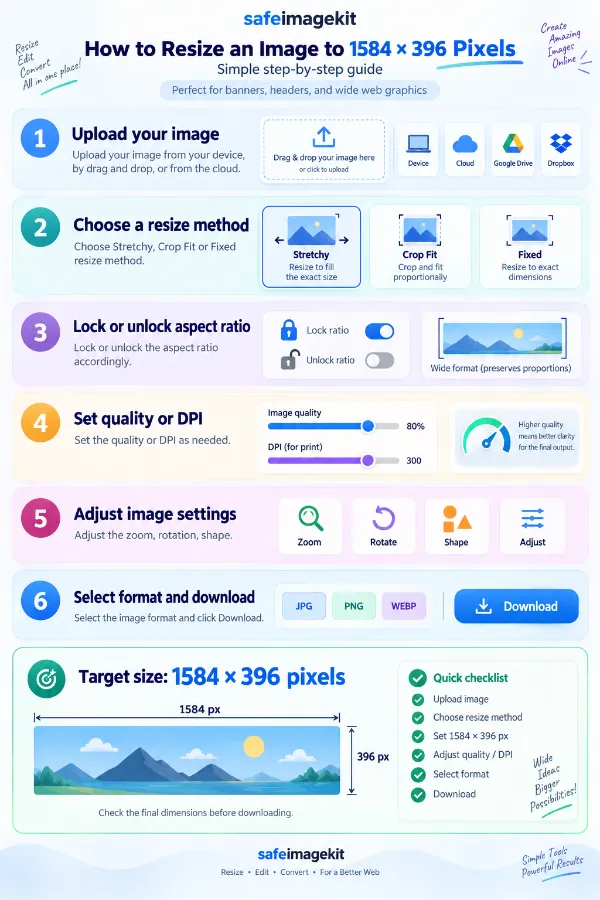
1 . Upload your image from your device, by drag and drop, or from the cloud.
2 . Choose the right resize method.
3 . Lock or unlock the aspect ratio accordingly.
4 . Set the quality or DPI as needed.
5 . Adjust the zoom, rotation, and shape.
6 . Select the image format and click Download.
Other useful information
Explore our visual guides and infographics
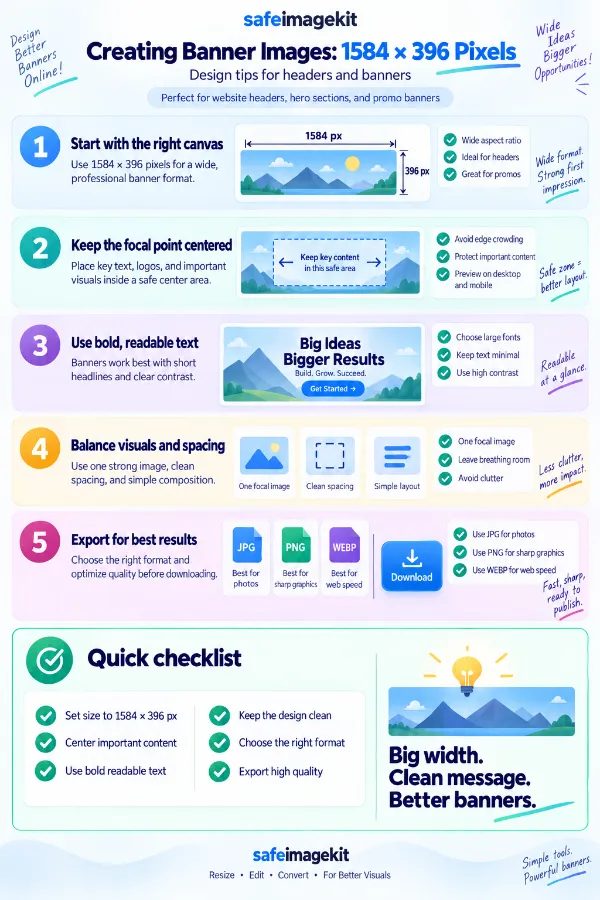
The infographic explains how 1584 × 396 pixel dimensions can be used to create wide banner graphics.
The infographic explains how to adjust an image to 1584 × 396 pixels and save the resized version.
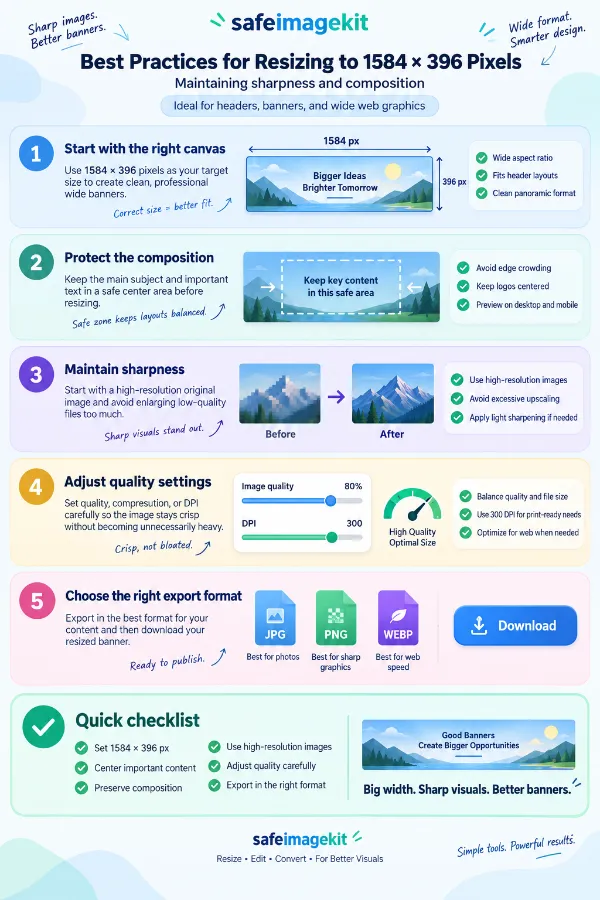
The infographic covers practical tips for fitting images to 1584 × 396 pixels while maintaining proper proportions and clarity.
×
Frequently Asked Questions
What is a 1584×396 pixel image?
A 1584×396 pixel image is an image that contains 1,584 pixels across its width and 396 pixels in height. Because the width is four times the height, it has a 4:1 aspect ratio, making it a very wide horizontal format.
Can I convert any image to 1584×396 pixels?
Yes. You can start with a portrait, square, landscape, or custom-sized image and create a 1584×396 output. However, because 1584×396 has a very wide 4:1 shape, images with different proportions may need to be cropped, padded, or stretched depending on the selected resize method.
What is the aspect ratio of 1584×396?
The aspect ratio of 1584×396 is 4:1 because 1,584 ÷ 396 = 4. This means the image is four times wider than its height. Other dimensions such as 800×200, 1200×300, or 2000×500 have the same 4:1 proportion.
Why is aspect ratio important for a 1584×396 image?
Aspect ratio describes the proportional relationship between an image's width and height. Since 1584×396 is a very wide 4:1 format, an image with a different proportion cannot fill the entire frame while simultaneously preserving its original shape without cropping, distortion, or padding. Choosing the appropriate resize method helps determine how those differences are handled.
How do I resize an image to 1584×396 without stretching?
Use Crop Fit when you want the entire 1584×396 frame filled while maintaining the original image's proportions. Some parts of the source image may be cropped if its aspect ratio does not match 4:1. If you need to preserve every part of the original image, choose Fixed instead.
How can I keep the whole image inside 1584×396?
Choose Fixed mode when preserving the complete source image is more important than filling every part of the canvas. The image is fitted within the 1584×396 dimensions without being stretched or cropped. Any remaining space can be filled with a selected background color or a custom hex color.
What does Stretchy mode do?
Stretchy makes the original image fill the complete 1584×396 pixel area by adjusting its width and height to the target dimensions. It ensures there is no empty space around the image and no content is cropped. However, if the original aspect ratio differs significantly from 4:1, the image may appear wider or narrower than the original.
Should I lock the aspect ratio for a 1584×396 image?
If you are adjusting an image proportionally, keeping the aspect ratio locked helps prevent unwanted distortion. However, if your requirement is specifically 1584×396 pixels, the final output must use those exact dimensions. In that situation, the fitting method determines how the original image is adapted to the 4:1 target shape.
How many pixels are in a 1584×396 image?
A 1584×396 image contains 627,264 pixels in total, calculated by multiplying 1,584 by 396. This represents the total number of individual pixels making up the image. It should not be confused with DPI, which describes pixel density when relating a digital image to a physical size.
What is 1584×396 pixels in centimeters?
There is no single physical measurement for a 1584×396 pixel image because pixels do not have a fixed physical size. The equivalent size in centimeters depends on the DPI selected for the image. For example, at 300 DPI, 1584×396 pixels corresponds to approximately 13.41 × 3.35 inches, or 34.06 × 8.53 cm.
Can I use 72, 96, 200, or 300 DPI for a 1584×396 image?
Yes. The tool provides 72, 96, 200, and 300 DPI options for different requirements. 72 DPI suitable for basic screen or web viewing, 96 DPI useful for general digital viewing and screen-oriented applications, 200 DPI suitable for many ordinary print-related uses where very high print detail is not essential, and 300 DPI generally preferred for higher-quality printing when greater print detail is required. If a website, printer, application, or organization specifies a particular DPI, use the value they require.
Does changing DPI change the 1584×396 pixel dimensions?
Not necessarily. 1584×396 pixels describes the digital dimensions, while DPI describes the pixel density used to relate those pixels to a physical size. If you keep the image at 1584×396 pixels and change only the DPI setting, the pixel count remains the same while its associated physical size changes.
What quality setting should I use for a 1584×396 image?
The tool provides a quality range from 0.1 to 1. Higher quality settings generally preserve more visual detail but may result in a larger file, while lower settings can reduce file size at the expense of some image quality. For photographs where appearance is important, use a higher setting; when file size is more important, you can reduce the quality while checking that the result remains clear.
Which output format should I use for a 1584×396 image?
The best format depends on how you plan to use the image: JPG/JPEG for photographs and general image use, especially when a smaller file is preferred, PNG for lossless image output or transparency, WebP for web applications where efficient file sizes are important, and GIF suitable for simple graphics or GIF-based content.
Can I create a 1584×396 JPG or PNG?
Yes. After preparing the image at 1584×396 pixels, choose JPG, JPEG, PNG, WebP, or GIF from the available output formats. The selected format determines how the final image is saved and can affect factors such as file size, quality, and transparency support.
Can I resize a private image to 1584×396 without uploading it to a server?
Yes. The image resizing operation is designed to run locally in your browser, so the image does not need to be sent to a remote processing server for the resize itself. This can be useful when working with personal images that you prefer to process directly on your device.
What types of effects can I apply to an image using image filters?
Image filters can change the appearance and mood of a photograph or graphic without requiring advanced editing software. Depending on the available filter, you can create effects such as fire, rainbow, blur, bulge, and other visual transformations. Experimenting with different filters can help you find a style that works for social media graphics, creative projects, profile images, or other visual content.
What is the difference between image filters and image effects?
Image filters generally modify the overall appearance or color treatment of a picture, while image effects can create more noticeable visual transformations. Depending on the effect you choose, you can experiment with options such as duplicate image, clip, color bars, swirl, tint, pencil sketch, and other creative effects. These image effects can be useful when you want to turn an ordinary image into something more stylized or visually distinctive.
Over 500k Users Rely on Our Image Editing Tools Monthly
Join a growing community of creators who trust safeimagekit.com for versatile image editing and processing solutions.
We appreciate your feedback and will use it to improve our services.
About The Author
RK Shree - A science enthusiast with a poetic flair, and possesses an insatiable desire to explore diverse fields seeking new knowledge and experiences. My work ethic is highly disciplined and dedicated. I take pleasure in pursuing creative endeavors that captivate me.